
Open the portal
Go to research.share-austria.at. The sign-in page opens.
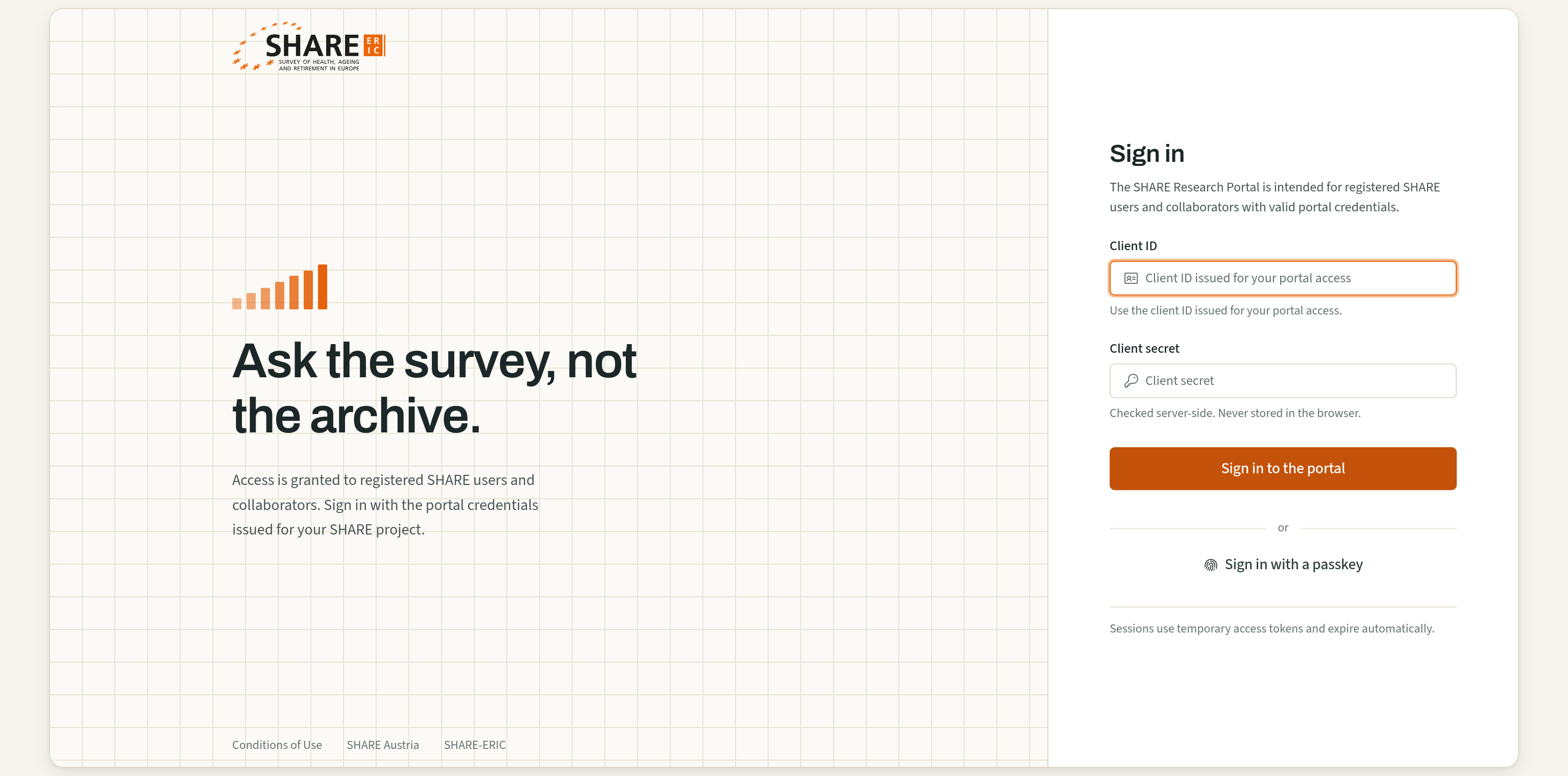
Enter your client ID and client secret
- Type your client ID in Client ID.
- Paste your client secret in Client secret. It is long, so copying it from the email is safer than typing it.
- Click Sign in to the portal.
Leave Sign in with a passkey for later. You can add a passkey once you are signed in (see the end of this guide).
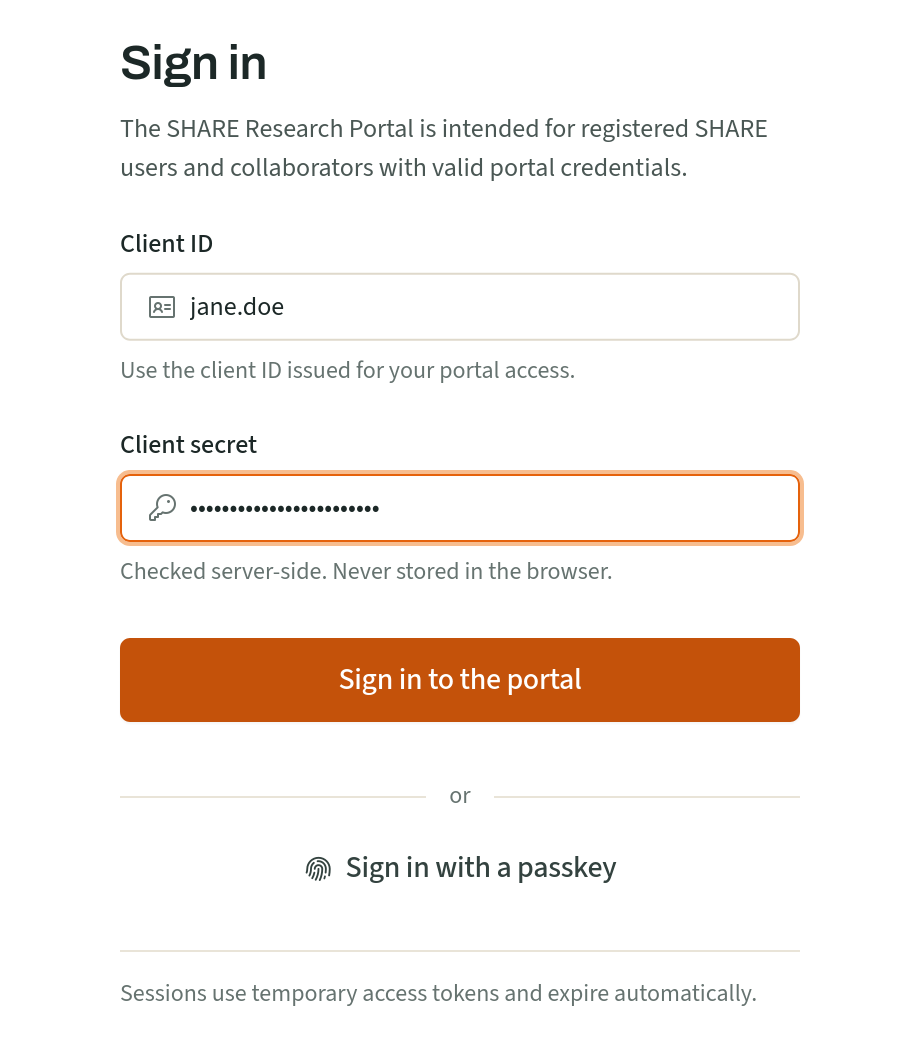
Set up two-factor (first time only)
The window Set up two-factor to continue opens by itself. You cannot skip it. It connects your account to the authenticator app on your phone.
- Open your authenticator app, add a new account, and scan the QR code.
- Cannot scan it? In the app, choose to enter a setup key by hand, and type the key shown under the QR code.
- The app now shows a six-digit code. Type it under Then enter the six digits it shows and click Confirm.
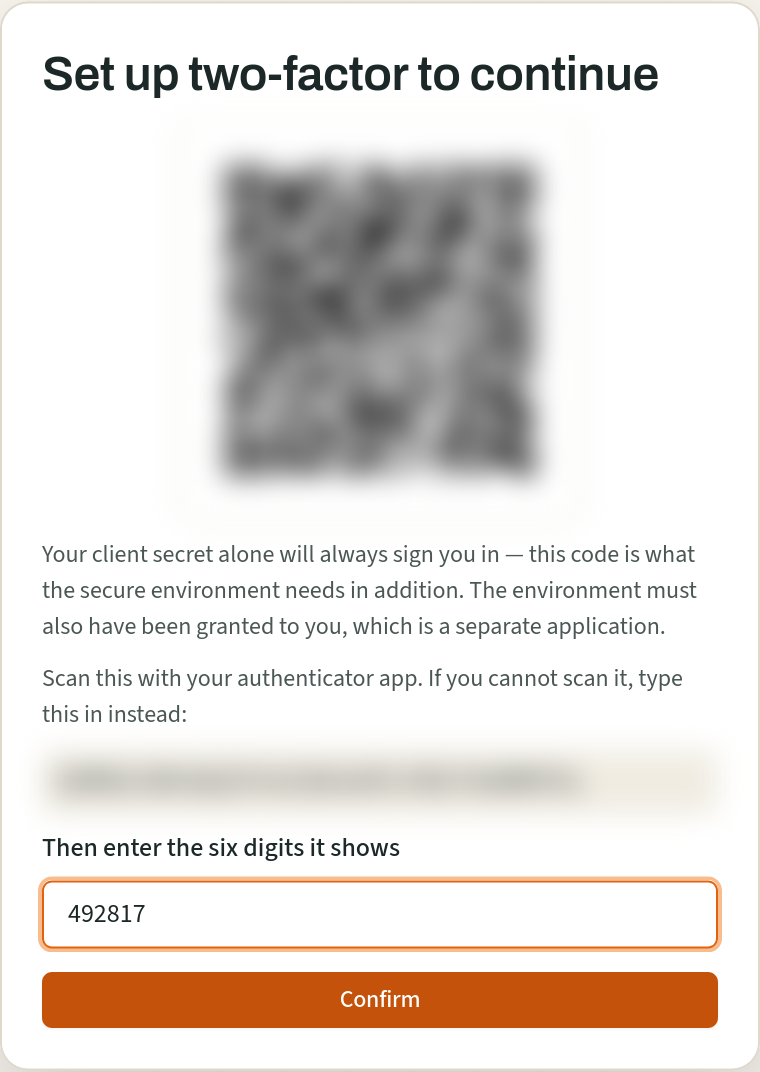
Do not scan the picture above
The QR code and the key in this guide are blurred on purpose. Scan the ones on your own screen: they belong to your account only.
Setting up on your phone?
You cannot scan a QR code on the screen you are looking at. Tap the key under the QR code to select it, copy it, and paste it into your authenticator app as a setup key. If the app asks what kind of code, choose time-based.
You are signed in
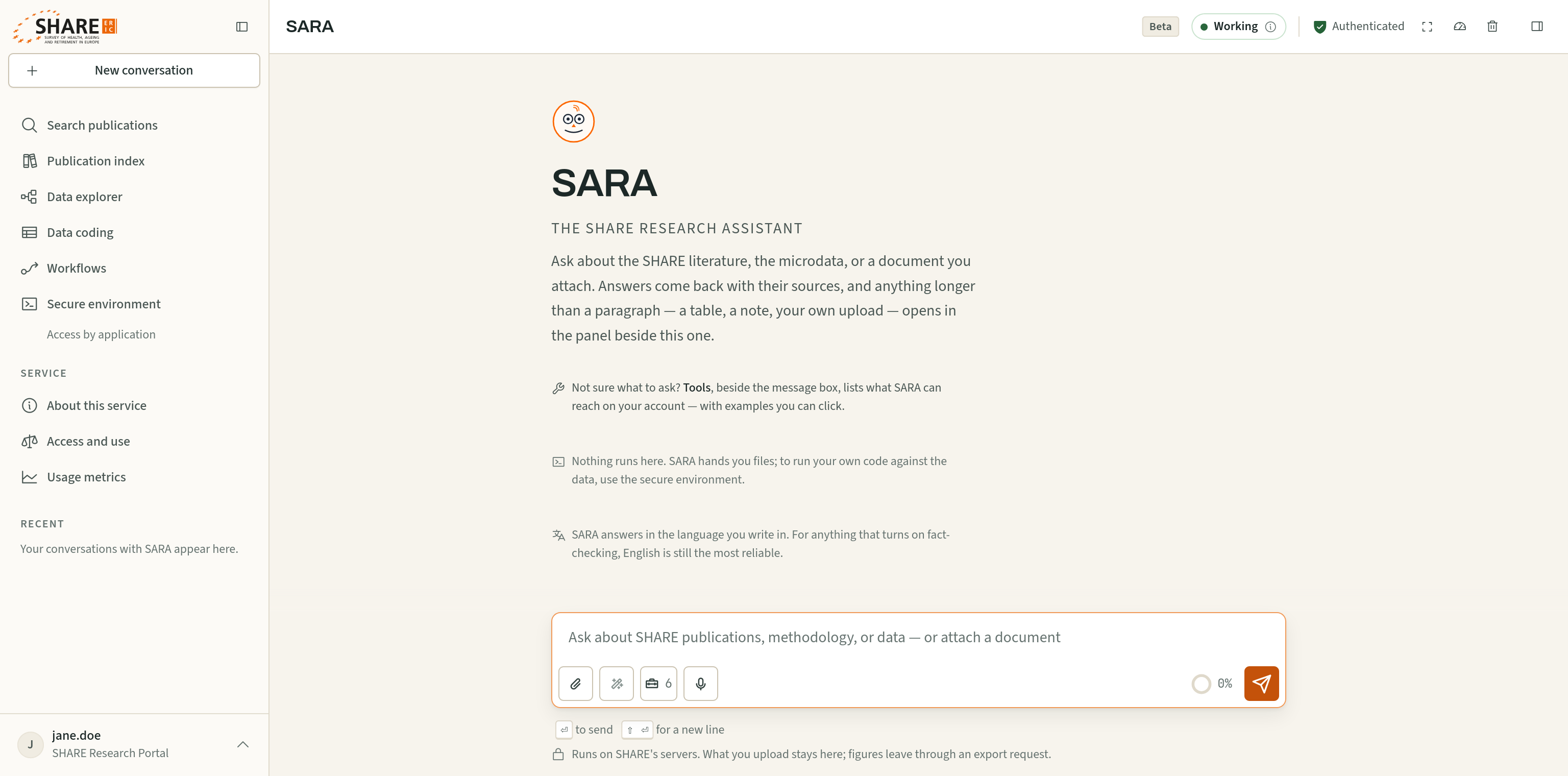
The portal opens with SARA, the SHARE research assistant. Your client ID is at the bottom left; click it to open your account menu. The setup window will not appear again.
Every sign-in after this
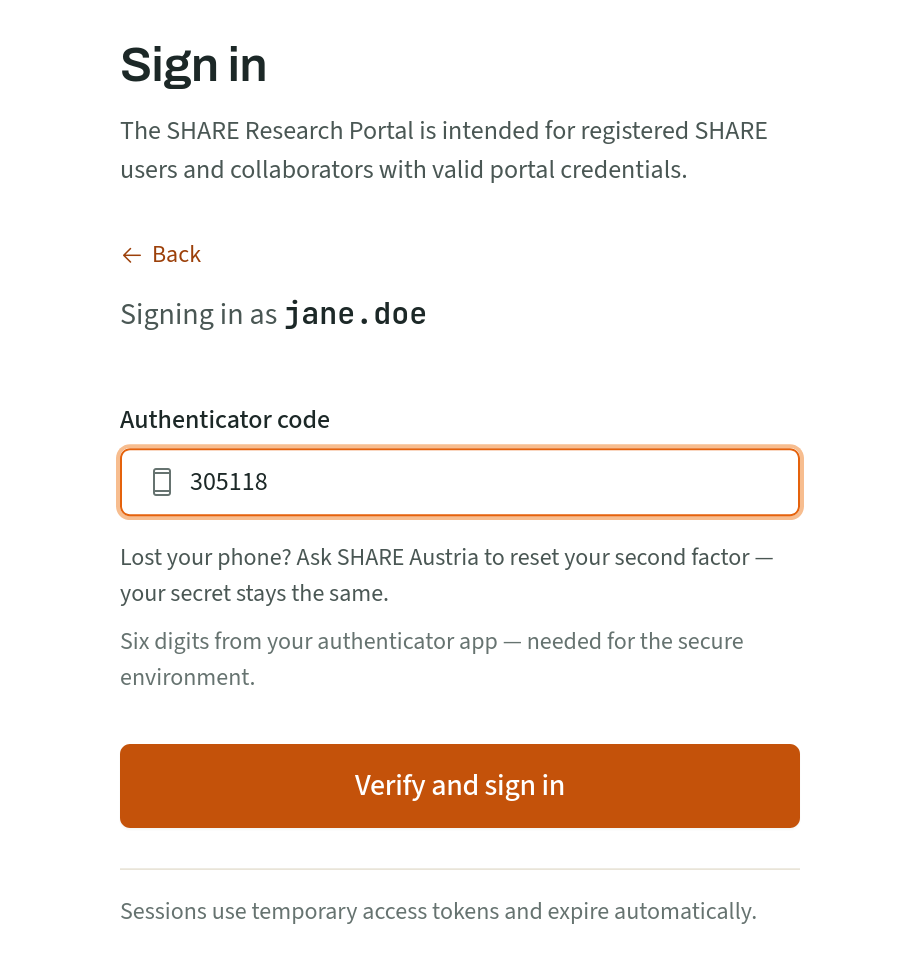
- Enter your client ID and client secret and click Sign in to the portal. The browser remembers your client ID. It never keeps your secret.
- The portal asks for your Authenticator code. Type the six digits your app shows now.
- Click Verify and sign in.
Codes change every 30 seconds. If one runs out while you type, use the next one. Back returns you to the first step.
Optional: add a passkey
A passkey signs you in with your fingerprint, your face or your device PIN, in place of the secret and the code.
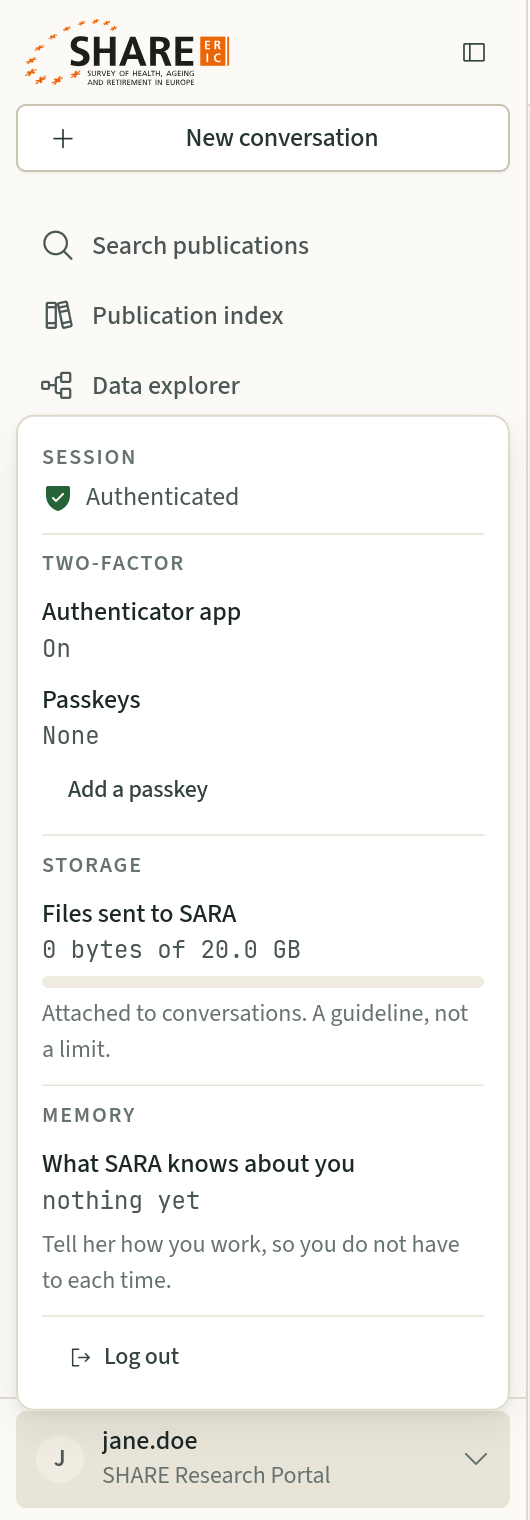
- Click your client ID at the bottom left.
- Under Two-factor, click Add a passkey and follow your browser's steps.
- Next time, click Sign in with a passkey on the sign-in page.
Your secret and code keep working, so you can still sign in on a device without the passkey. Log out is in the same menu.
If something goes wrong
- Sign-in failed. Check your client ID and client secret.
- One of the two is wrong. Copy and paste both exactly as they are in the email. If it still fails, ask SHARE Austria to check your account.
- That code was not accepted.
- Codes last about 30 seconds. Type the code the app shows now. If every code fails, set your phone's date and time to automatic: the codes depend on its clock.
- You lost or replaced your phone
- Ask SHARE Austria to reset your second factor. Your client ID and secret stay the same. At your next sign-in you set up two-factor again, as in step 3.
- You lost your client secret
- Ask SHARE Austria for a new one. A new secret also removes your second factor and any passkeys, so you set up two-factor again.
- Unable to reach the sign-in service.
- The connection dropped, or a network is blocking the portal. Check your connection and try again.
- You need the secure environment
- Signing in does not open it. Click Secure environment in the left sidebar, then Apply for access. SHARE Austria checks each application first.